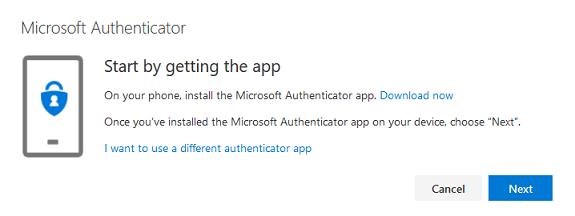
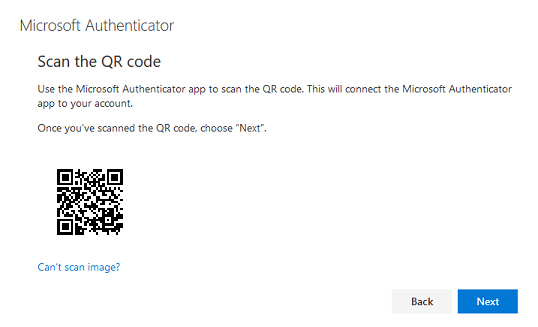
There are several possible reasons why signing in with the Microsoft Authenticator app fails:
- You deleted your account in the authenticator app.
- Add your UGent account back in the app.
- You have a new phone.
- Download and install the app on your new phone.
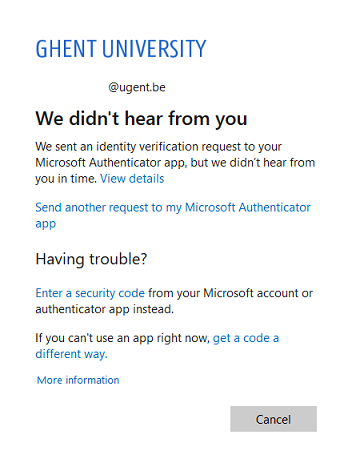
- You did not respond to the notification of the authenticator app on your smartphone in time.
- Click on "Send a new request to my Microsoft Authenticator app".
- The app does not give push notifications on your smartphone (yet).
- Make sure push notifications are enabled for the Microsoft Authenticator app on your device.
- Swipe down in the list view of the app to check for pending verifications. You can sign in using pending verification as a temporary solution.
- Check that the device's date & time are correct if you get an expired notification.
- You have not (yet) given the app permission to the camera to scan the QR code.
- Access your phone's camera through the app's settings.
If the solutions above do not work, please try a different MFA method.
Created: 25 August 2022
Last updated: 26 August 2026 11:33:07
Comments or suggestions about this answer? Your
feedback is appreciated.